
Estimating
AI Takeoff From Drawings: How to Check Every Line Before You Price It

Drop a set of drawings into an AI tool and you’ll have a spreadsheet of quantities in seconds. That part isn’t hard any more. The hard part comes next: you look at a line that says 42 and you have no idea where 42 came from. Did it count level two? Did it pick up the fittings on the reflected ceiling plan? Which revision was it reading?
So to trust it, you redo it. And once you’re redoing the takeoff by hand, the AI hasn’t saved you any time. It’s added a step.
The fix isn’t a smarter count. It’s a takeoff you can check faster than you could redo it.
Why is an AI takeoff hard to check?
Because most of them hand you totals without a trail. A quantity on its own is just a number. To check it, you have to go back to the plans, find the right sheet, find the right revision and count again, which is the job you were trying to get out of.
A contractor told us their BOQ spreadsheet works fine. The hard part is reading layered drawings and working out where the scope stops. A bare total doesn’t help with that. It hides the exact decisions you need to see: what was counted, what was assumed and what was left out.
There’s a second trap. A trail tells you where a number came from, but it doesn’t prove the number is right. You still need to check it. The trail just turns that check from a recount into a quick look.
What should every line of an AI takeoff show?
Before a quantity goes anywhere near your rates, it should carry enough evidence that your estimator can check it at a glance. Here’s what to look for, line by line.
| What the line shows | Why it matters | How you check it |
|---|---|---|
| The drawing number and revision | You’re never pricing off a superseded sheet | Confirm it’s the current revision in the document register |
| The page and a cut-out of the drawing | You can see what was counted without opening the plans | Look at the picture, then the number |
| The legend line it matched | Similar symbols don’t get counted as the same item | Check the legend line against the item description |
| A tag: measured, calculated, allowance or flagged | You know which lines need judgement, not just a glance | Spend your time on allowances and flagged lines |
| The rule behind any allowance | An allowance is your business rule, not a guess | Check the rule is the one you’d apply |
| Open questions | Unclear scope stays visible instead of becoming a number | Answer them, or carry them into the quote as a clarification |
If a line can’t show you those things, you can’t check it without redoing it.
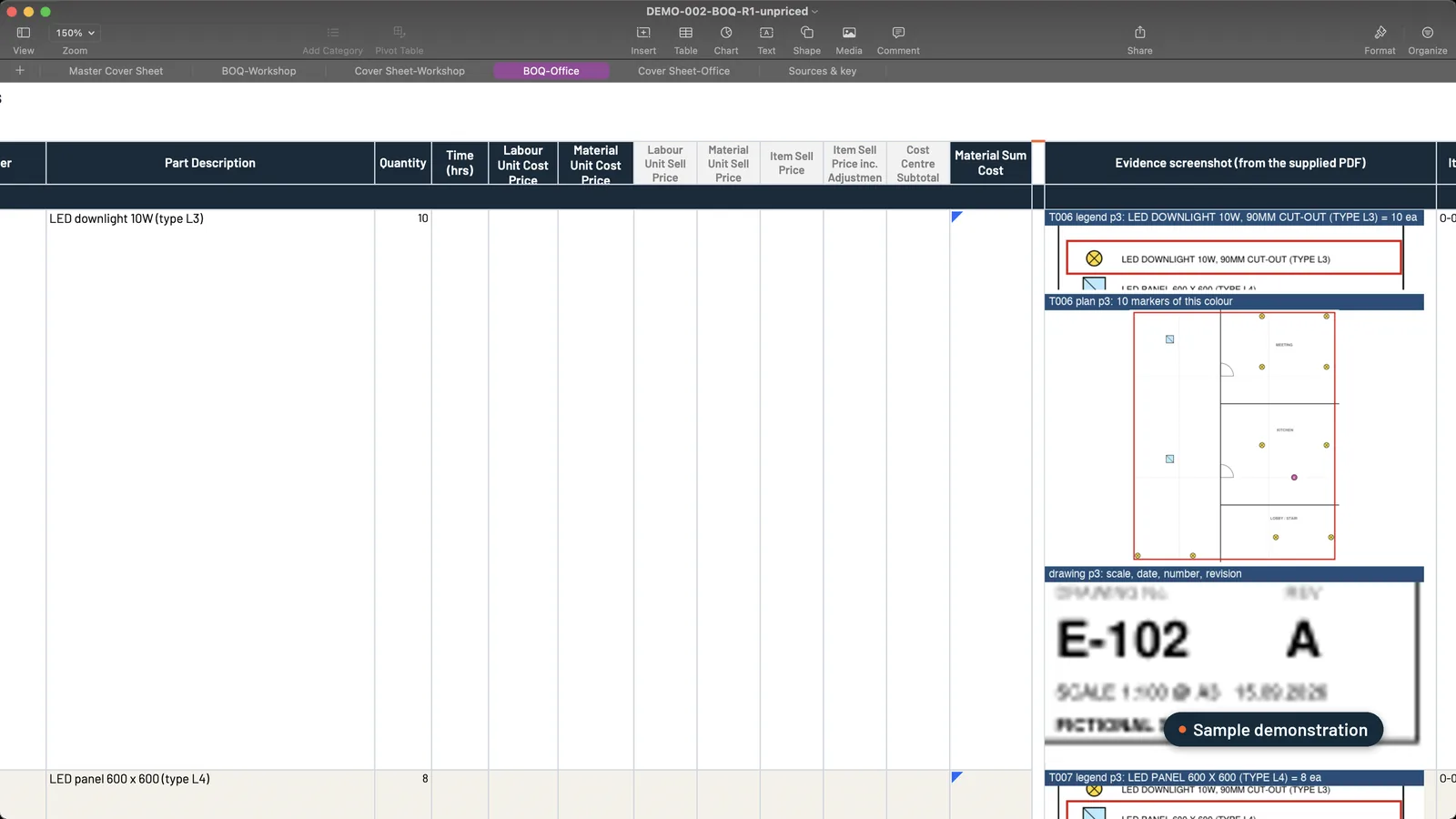 Sample data. The quantity sits beside the legend line it matched, the markers counted on the plan, and the drawing number and revision.
How do you check a takeoff line by line without recounting?
Work through it in the same order every time:
- Check the document register first. Every drawing and revision should be registered before any counting starts. If the takeoff was built from an old sheet, nothing below it matters.
- Read the scope notes. Every “contractor to” note should be pulled into one list, so you can see what the drawings say is yours before you look at a single quantity.
- Go number, picture, number, picture. For each measured line, look at the quantity and then the cut-out beside it. You’re confirming, not counting.
- Slow down on calculated and allowance lines. Check the working and the rule behind them. That’s where your business judgement lives.
- Clear the flagged lines. Anything the system couldn’t read should be waiting for you as an open question. Answer it, or decide how the quote will handle it.
- Sign off before pricing. Lock the BOQ once it’s checked, so the price is built on the quantities you approved.
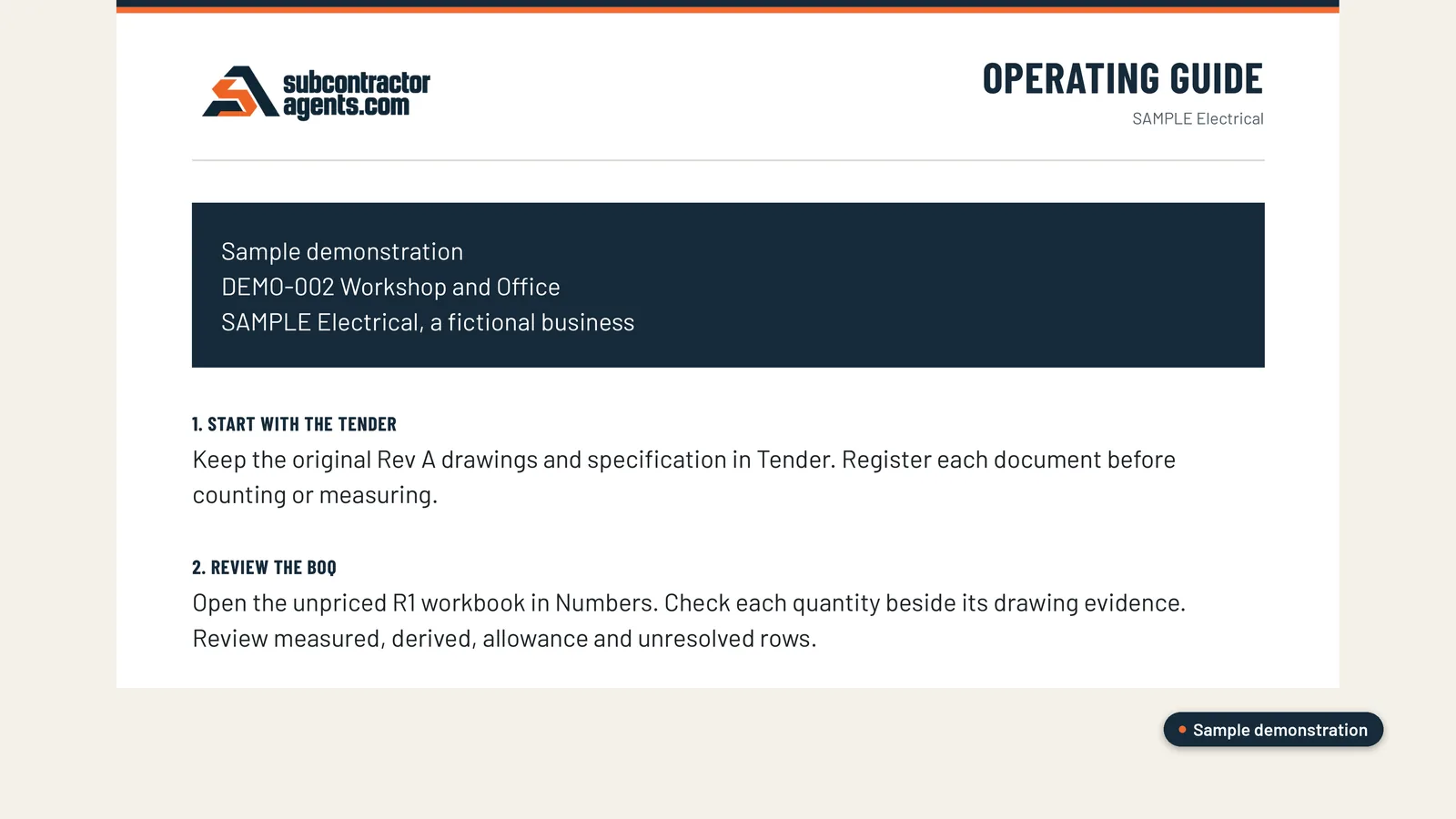 Sample data. The step-by-step guide has your estimator review the unpriced BOQ, checking each quantity beside its drawing evidence.
Why check before you price, not after?
Because once rates go on, every error gets more expensive to find. A wrong count becomes a wrong material line, a wrong labour allowance and a wrong total, and by then you’re checking the price, not the takeoff. Checking the quantities first means each problem is found once, in one place.
It also keeps pricing honest. When the quantities are signed off, the pricing step only has to use your rates. A contractor told us the prices you find online are nothing like the trade prices their business actually pays. A takeoff you can trust still needs pricing you can trust, and that means your own rates.
How do we build an AI takeoff you can check?
We stopped asking AI for a takeoff and built the whole process. We set up a custom estimating plugin in your own Claude or ChatGPT business account that runs the 15 steps a good estimator works through, in four stages, around your trade, your BOQ layout, your pricing and your quote template:
- Measure. It registers every document and revision, pulls out every “contractor to” note and builds the BOQ in your layout. Each line shows where it came from: a drawing cut-out, the legend line, drawing number and revision. Each is tagged measured, calculated, allowance (with its rule) or flagged. Unclear items are flagged, never guessed.
- Approve. Your estimator checks instead of redoing: number, picture, number, picture. Changes save as a new revision, marked as theirs, and sign-off locks to that exact BOQ.
- Price. Your rates, each with its source and date. Any missing rate is listed for you to fill in. You get an internal pricing workbook and a draft quote on your letterhead, with your costs and markups kept off it.
- Addenda. Addendum in, change schedule out, with before-and-after excerpts and the price difference. Your original stays untouched.
You confirm the BOQ, you approve the price and you approve the quote. Nothing goes to the builder until you have. It works with your files where they already live, on your computer or synced from SharePoint, OneDrive, Google Drive or Dropbox, and the workbooks open in Excel or Sheets.
If you’ve already tried dropping drawings into a chat and got a number you couldn’t use, we explain why in can ChatGPT or Claude do construction estimating?. For mechanical work specifically, see the best way to do HVAC takeoffs.
How do you know it’s right before you rely on it?
We prove it on your own work first. You give us three jobs you’ve already priced. We run the first one with you and compare it line by line, then lock the setup and run the other two without seeing your numbers. The target is every row and the price matching to the cent. Where it differs, we show you why and fix the rules, never the answer.
You keep quoting the way you do now while we build it, and switch over once you’ve seen it match your own jobs.
Is it worth a look?
If you’re a commercial subcontractor quoting from drawings, in HVAC, electrical or solar, and the takeoff is where your evenings go, yes. We build it from three of your quoted jobs, your pricing sheet and your quote template. It’s A$6,000, one fixed fee, backed by our 14-day money-back guarantee.
See how our estimating plugin works, or book a call and bring a recent tender.
Frequently asked questions
How do you check an AI takeoff from drawings?
Line by line, number against picture. Each BOQ line should show the drawing cut-out, the legend line, the drawing number and the revision it came from, so checking it is a look, not a recount. Lines tagged allowance or flagged get the closest look, and your estimator signs off the BOQ before anything is priced.
Can I trust the quantities an AI takeoff gives me?
Not on its own say-so. Trust comes from being able to trace every number and from testing it on jobs you've already priced. We run the setup on three of your completed jobs and compare every row, and where it differs we show you why and fix the rules, never the answer.
What happens when the AI can't read part of the drawing?
It should say so. In the plugin we build, unclear items are flagged, never guessed, so they stay open for your estimator instead of turning into a quantity nobody can explain.
Do I still need an estimator if the takeoff is done by AI?
Yes. It takes the redoing and the typing off them. They check the numbers, make the calls and approve the price, and nothing goes to the builder until you've approved it.
What happens to the checked takeoff when the drawings change?
Your original stays untouched. An addendum comes in and a change schedule comes out, with before-and-after excerpts and the price difference, so you check what changed instead of starting the takeoff again.
Want this set up on your own jobs?
We build your estimating plugin in your own Claude or ChatGPT account, around your rates and template, and prove it on three of your completed jobs. A$6,000 fixed.
Book a workflow call →Has worked with 80+ subcontractors on estimating, tendering and job reporting.