
How to Handle Addenda Without Redoing Your Takeoff
An addendum shouldn't send you back to the start. Find what changed, reprice only that, and show the builder the difference.
The takeoff is done. The BOQ is checked, the rates are on, the quote is nearly ready. Then it lands: Addendum 01, three revised drawings and a new spec note. Tender closes in four days.
The fix: treat an addendum as a comparison, not a fresh start.
Why does an addendum feel like starting the takeoff again?
Most takeoffs don’t record where each number came from. A line says 324 metres of cable and nothing else. Does the revised drawing change it? The only safe answer is to measure again. Then you start doubting the rest.
There’s a timing trap too. If RFQs went out before the addendum, suppliers may be pricing the old work while you estimate the new. Two numbers for two jobs, unnoticed until the prices don’t add up.
What does an addendum actually change in your estimate?
Not every addendum touches everything. Sort it before you open a drawing.
| What the addendum contains | Where it hits your estimate | What to do |
|---|---|---|
| A revised drawing (new revision) | Quantities measured from that sheet | Compare old and new, update only lines from that sheet |
| A specification change | Rates, products or labour, not quantities | Check the rate and labour behind each affected line |
| A response to tenderer questions | Scope boundaries and exclusions | Update scope notes, inclusions and exclusions |
| A new or deleted drawing | Whole items added or removed | Register it, then measure or remove its items |
| A changed closing date or tender form | The submission, not the price | Note it in your tender register and on the quote |
Most people skip the first column. Ten minutes sorting saves hours recounting unchanged sheets.
How do you update a takeoff without starting again?
Same order, every time:
- Register the addendum first. Record each new drawing and revision before changing any number.
- Keep the original. Save the checked BOQ as it was. You’ll compare against it and may need to explain the difference.
- Find the lines from the changed sheets. If every line shows its drawing number and revision, this is a filter, not a search.
- Compare old against new, line by line. Old excerpt beside new, update the quantity. Unchanged lines stay.
- Reprice only what changed. Including labour that moves with the quantity.
- Record the difference. Every changed line, why, and the price impact. That’s your change schedule.
- Check your supplier requests. If an RFQ went out on the old revision, tell the supplier which drawings changed.
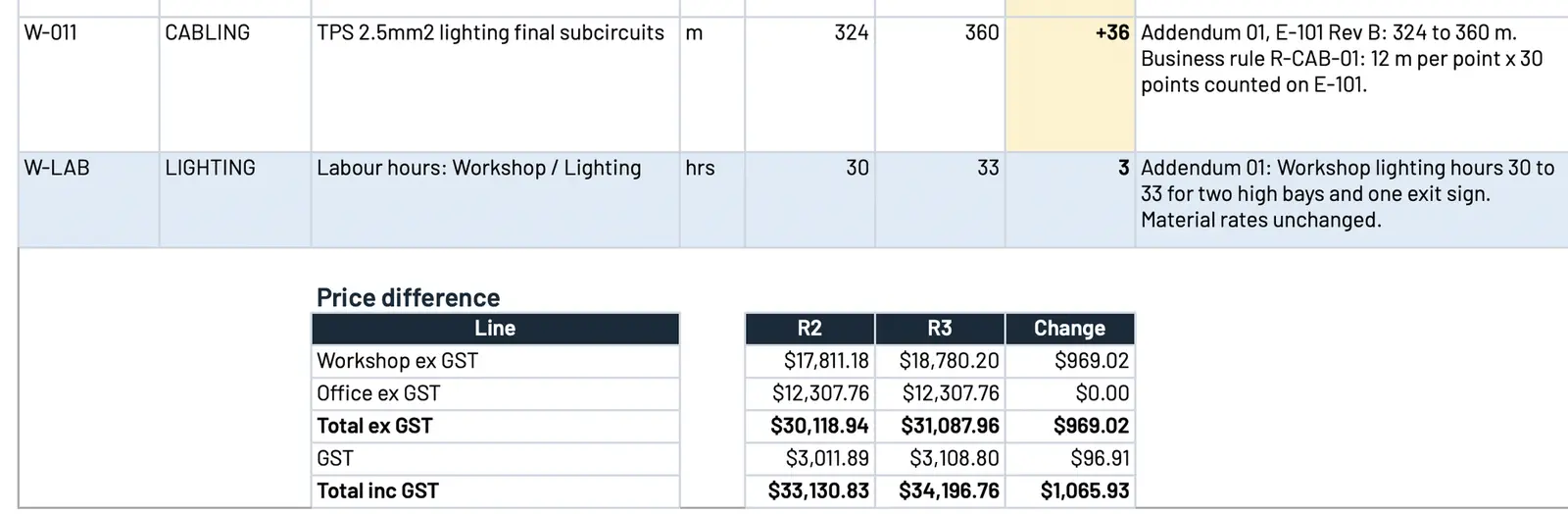 Sample data. Each changed line shows the old and new quantity and the reason, and the price difference sits underneath.
How do you show the builder what changed in your price?
With the change schedule, not a new quote. A builder comparing tenders wants two things: that you priced the current documents, and what moved. Old quantity, new quantity, reason and price difference answers both.
It protects you too. If scope is questioned after award, you show which addenda you allowed for and what each did. List them on the quote, so there’s no doubt which documents your price covers.
Tightening the rest of your quoting? Our checklist for quoting faster without cutting corners covers what to check before anything is counted.
Why does a traceable takeoff make addenda easy?
The first takeoff’s work makes the second fast. When every line shows its drawing number, revision and a cut-out, an addendum is one short question: which lines came from the changed sheets?
Without that trail, you recount. That’s why the first check matters. See what every line should show in how to check every line of an AI takeoff before you price it. The evidence that makes a takeoff checkable makes it easy to update. For electrical work, see electrical estimating software.
How do we handle addenda in the estimating plugin?
We set up a custom estimating plugin in your own Claude or ChatGPT account. It runs the 15 steps a good estimator works through, set up around your trade, BOQ layout, pricing and quote template. Four stages:
- Measure. It registers every document and revision, lists every “contractor to” note and lays out the BOQ your way. Each line shows its drawing evidence and a tag. Unclear items are flagged, never guessed.
- Approve. Your estimator checks number against picture and signs off. Sign-off locks that BOQ.
- Price. Your rates, each with a source and date. Missing rates are listed for you. A draft quote on your letterhead, costs kept off it.
- Addenda. Addendum in, change schedule out, with the price difference. Your original stays untouched.
You approve the BOQ, the price and the quote. Nothing goes to the builder until you do. It works on your files where they live, locally or synced from SharePoint, OneDrive, Google Drive or Dropbox.
We prove it on three of your priced jobs first: one run with you, two blind. The target is every row and the price matching to the cent. Where it differs, we fix the rules, never the answer.
Is it worth a look?
If you quote commercial work from drawings and every addendum sends you back to the plans, yes. We set it up from three of your quoted jobs, your pricing sheet and your quote template. A fixed setup fee, confirmed on your call.
See how our estimating plugin works, or book a call and bring a tender that had an addendum.
Frequently asked questions
What is an addendum in a construction tender?
A change to the tender documents before close: new drawing revisions, spec changes, answers to tenderers or a new closing date. Your price must cover every one.
Do I have to redo my takeoff when an addendum comes in?
No, if every line shows its drawing and revision. Then you update only the lines from changed sheets. Without that trail, you recount.
How do I show the builder what an addendum changed in my price?
A change schedule: each changed line, old and new quantity, reason and price difference. List the addenda you've allowed for on the quote.
What does the estimating plugin do with an addendum?
Addendum in, change schedule out, with before-and-after excerpts and the price difference. Your original BOQ stays untouched.
What if the addendum makes part of the scope unclear?
It stays open, never guessed. Your estimator answers it or carries it into the quote as a clarification.
Want this on your own jobs?
The estimating plugin is live today: we set it up in your own Claude or ChatGPT account around your rates and your template, and your estimator checks every line before it goes out. The App, with the rest of the office, is in build.